How to save your data and rebuild a better Project Room in Glue (on desktop or a broader range of XR devices).

⚠️ The lights are going out at Meta Horizon Workrooms.
As announced, Meta is discontinuing the service on February 16, 2026, leaving thousands of teams scrambling to find a reliable Horizon Workrooms alternative. After this date, all persistent rooms and meeting histories will be permanently deleted. If your team relies on virtual spaces for design reviews or agile standups, you need a new home right now.
The Good News
You don’t have to downgrade to 2D video calls. Glue (now part of Hyperspace) is not only active but thriving. The Glue immersive platform offers the persistent, high-fidelity collaboration you’re used to, on your choice of platform: desktop without the “headset friction” or in any of the leading XR headsets.
Here is your step-by-step survival guide to exporting and rebuilding your space in Glue before the deadline.
Note: some aspects such as whiteboards, uploaded content, and customization were already retired in 2024.
A. Install Glue Collaboration App
The Glue App is available in the headset store or on your connected device here: Download Glue
B. The “Exit Checklist” (What to Save Now)
Meta does not offer an “Export” feature, so you must do this manually before Feb 16, 2026.
⬜ Export Your Whiteboards (Critical)
Workrooms allowed you to export whiteboards as images. Go into every active room your team uses.
- Action: Click the “Export” button on your virtual whiteboard menu.
- Result: Download them as high-res images to your local drive. You will re-upload these into Glue later.
💡 Pro Tip: The “Nuclear Option” Backup
If you can’t find specific files, use Meta’s bulk export tool as a final safety net.
- Go to: Meta Accounts Center -> Your Information and Permissions -> Download your information.
- Select: “VR and Horizon” (or “Workrooms” if available).
Warning: This process generates a massive ZIP file and can take 24-48 hours to process. Do not wait until Feb 15. This dump often contains JSON/metadata that is hard to read. We strongly recommend manually downloading your whiteboards and PDFs from the Workrooms “Files” tab first.
⬜ Download Your Files
Any PDFs, images, or presentation decks you uploaded to a Workrooms desk or table are not saved to your PC automatically.
- Action: Log in to the Workrooms web dashboard (workrooms.workplace.com) and download all files associated with your rooms.
⬜ Copy Your Meeting Notes
Go to the “Notes” tab in your web dashboard. If you have critical action items or decisions recorded there, copy/paste them into a Doc now. They will not be included in the whiteboard image export.
⬜ Locate Your Source 3D Files
Warning: If you uploaded 3D models (products, prototypes) to your Workrooms table, you cannot download them back out. You must find the original .glb or .fbx files on your local hard drives or ask your design team for the source masters.
⬜ Save Your Member List (Manual Step)
Workrooms does not allow you to export a CSV of your team members. You must manually copy this list to ensure you invite the right people to your new Glue space.
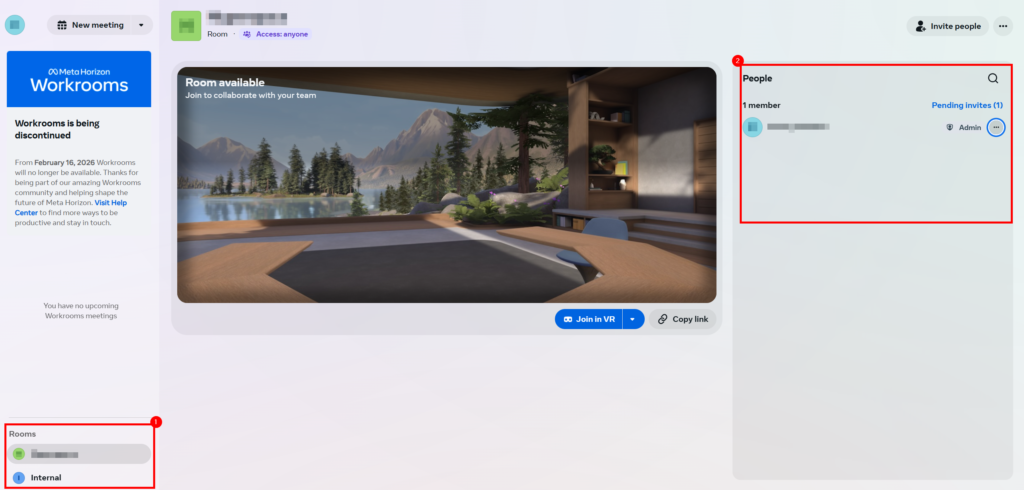
- Log in to the Workrooms web dashboard
- Click on each Room in the left sidebar
- Look at the People tab on the right side
- Copy/Paste these names and emails into a spreadsheet so you can bulk-invite them to Glue later
⬜ Screenshot Your “Room Logic”
You cannot export the 3D layout of your Workrooms.
- Action: Take screenshots of how your team organized the room. Where was the kanban board? Where did the design team sit? You will use these references to configure your Glue space.
C. The Migration Guide: Rebuilding in Glue
Now that your data is safe, let’s get your team back to work. Here is how to map your old workflow to Glue.
Step 1: Choose Your “Shell”
Horizon Workrooms had generic office layouts. Glue offers more variety.
- If you had a Boardroom: Select Glue’s “Project Room” or “Boardroom” template.
- If you had a Project Room: Select Glue’s “Workshop” space, optimized for persistent whiteboarding and agile walls.
The Desktop Advantage: Unlike Meta Horizon Workrooms, which was designed primarily for Meta Quest VR headsets, Glue offers a fully-featured Desktop Client for both Mac and PC. This means your team can enter these persistent 3D spaces and collaborate effectively using a standard screen and keyboard if they don’t have their headset handy.
Quick Translation Guide: Workrooms vs. Glue
| In Workrooms | In Glue |
|---|---|
| Personal Office | Team Space (Private Mode) |
| Whiteboard Export | Persistent Canvas (Stays on the wall) |
| Desk/Table Layout | Fixed Scenes (Reliable & performant) |
| Meta Quest Headset Only | Leading XR devices + Desktop Mode (PC/Mac Client) |
Step 2: “Re-Hang” Your Whiteboards (The 5-Minute Fix)
Use Glue’s customization features to make the space feel like home immediately.
- Import Images: Take those whiteboard exports you saved and drag-and-drop them onto the walls in Glue.
- Persistence: Glue spaces are persistent by default. Once you place that whiteboard image, it stays there forever until you move it.
- Resource: 3 Ways to Customize Your Glue Experience – Use this guide to learn how to place logos and team assets.
Step 3: Advanced “Pixel-Perfect” Replication (Optional)
If your team is attached to a specific room layout or branding:
- Custom Space Templates: Glue allows you to import custom 3D environments. If you have a 3D model of your real-world office (or a similar CAD file), you can import it directly.
- Resource: Creating a Glue Space Template – Forward this link to your 3D artist or IT lead.
For the Tech Team: Custom Templates
If you need to recreate a bespoke branded environment, Glue offers a powerful Unity-based workflow. Unlike the closed Workrooms ecosystem, we allow you to build custom environments using standard Unity tools.
- Requirement: Unity 2021/2022 LTS with Universal Render Pipeline (URP).
- Performance: We support standalone headsets (Quest 2/3/Pro), so we enforce strict performance budgets (draw calls, poly counts) to ensure a smooth experience for all users.
Step 4: Invite the Team (The “Hybrid” Upgrade)
One of the biggest friction points with Meta Horizon Workrooms was requiring a headset for every interaction.
The Upgrade: Send your team the Glue 3D Desktop Client installer. They can join the first migration meeting directly from their laptop to get acclimated to the new space. This allows for a “gradual migration” where team members can start on PC/Mac and switch to VR headsets later when they are ready for the full immersive experience.
Need help moving your team?
We know moving platforms is stressful. If you have a large team or complex assets to move, grab a 15-minute migration call (no commitment) with our team for a specialized onboarding session. We’ll help you map your old workflow to your new Glue home.
- Fast-Track Onboarding: We’ll help you set up your first persistent room in 24 hours.
- Asset Assistance: Need help importing your old whiteboard exports? Our support team can guide you.